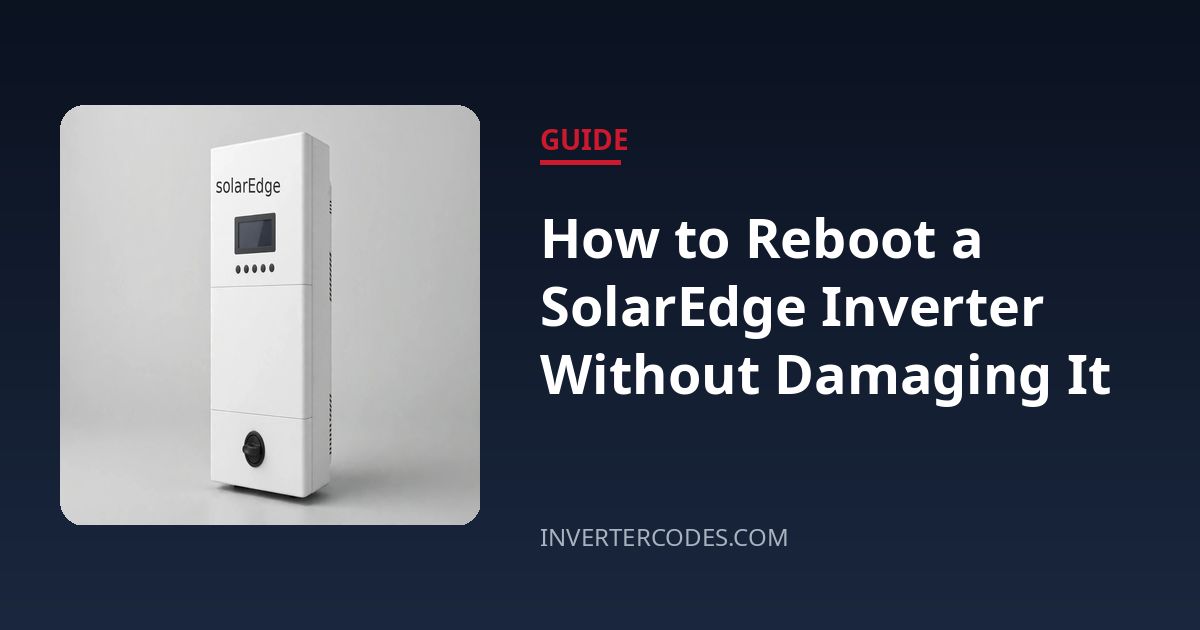
How to Reboot a SolarEdge Inverter Without Damaging It
Quick answer
SolarEdge inverters have a dedicated P/1/0 (ON/OFF) switch — always use it first. Move the switch to 0 (OFF), then wait until the LCD shows the DC voltage has dropped to a safe level (below 50 V) or wait five minutes for the input capacitors to discharge, per SolarEdge’s official application notes. Only then open the external DC and AC disconnects. Reverse the order to restart, and allow about five minutes for the inverter and power optimizers to pair up and resume production.
Why the switch order matters
Unlike most string inverters, a SolarEdge system keeps its power optimizers at a safe 1 V output each while the inverter is off — but the inverter’s input capacitors still hold a dangerous DC charge after shutdown. SolarEdge’s troubleshooting documentation is explicit: turn off the P/1/0 switch and wait for the DC voltage to fall to a safe level (or five minutes) before touching any DC disconnect. Throwing a DC disconnect while the inverter is in production can draw an arc across the contacts and damage the switch — and the inverter itself. The red switch exists precisely so the system powers down gracefully before anything is isolated.
Full reboot: the documented procedure
- Move the P/1/0 switch to 0 (OFF). The inverter stops producing; the optimizers drop to safe voltage.
- Wait for DC to reach a safe level. Watch the LCD until it indicates the DC voltage is safe (below 50 V). If you cannot see the panel, or if a malfunction is indicated, wait a full five minutes for the input capacitors to discharge.
- Open the external DC disconnect (if your installation has one), then open the AC disconnect.
- Wait a minute or two with everything off so the reset fully takes effect.
- Close the AC disconnect, then close the DC disconnect.
- Move the P/1/0 switch to 1 (ON).
- Allow about five minutes for reboot. The inverter boots, the relays click, the LEDs blink through the startup sequence, and the optimizers pair with the inverter. This is normal — be patient and do not interrupt it.
- Confirm production. A solid green LED means the system is producing power; solid blue means communication is connected. Check the mySolarEdge app to confirm data is updating.
Reading the LEDs after the reboot
- Solid green — producing power normally.
- Flashing green — the inverter has AC power but is in standby or still starting up.
- Blue (solid) — communication link active.
- Red or an error on the LCD — a fault is present; note the exact message or code (for example rapid-shutdown or isolation-fault codes) before doing anything else.
When to call a professional
A reboot clears communication glitches and transient faults, but SolarEdge’s own troubleshooting guides route persistent problems to qualified technicians. Call your installer or SolarEdge support if:
- Rapid-shutdown errors (codes in the 3x9B family and related test-failure codes) persist — these involve string-level voltage measurements and optimizer diagnostics that require training and test equipment.
- Isolation faults appear — the documented troubleshooting procedure uses an insulation tester and involves disconnecting string home-runs, which is professional work.
- The inverter shows a persistent red LED or error that survives a proper reboot.
- You see any sign of damage, burning, or debris inside or around the inverter or disconnects — take photos and contact support before touching anything.
- The system needs optimizer re-pairing or a firmware reload from the maintenance menu — missteps here can leave the system misconfigured.
Never remove the inverter or disconnect covers yourself: SolarEdge’s guides describe those steps for technicians checking for dynamic failure, and they require the five-minute capacitor discharge first.
Frequently asked questions
Will rebooting delete my SolarEdge settings or monitoring history?
No. A reboot does not erase configuration, optimizer pairing data, or your mySolarEdge production history. Pairing information is stored in the inverter — although in rare cases a hard power interruption has forced a re-pairing, which is one more reason to use the P/1/0 switch first rather than yanking disconnects.
Why can’t I just flip the DC disconnect to reset it?
Because breaking a live DC circuit under load draws an arc that pits and damages the switch contacts, and it can upset the inverter’s shutdown sequencing. SolarEdge documents the P/1/0-first procedure specifically to avoid this. The disconnects are isolation devices, not routine reset buttons.
How long does a SolarEdge inverter take to come back online?
Allow about five minutes after switching back on: the inverter boots, runs self-tests, clicks its relays, and negotiates with every optimizer on the roof. The mySolarEdge app may take a few minutes longer to reflect the restored data. If the LEDs have not settled to solid green and blue after ten minutes in daylight, note the LED pattern and call your installer.
My inverter is stuck showing standby with a flashing green light. Is a reboot the fix?
A reboot is a reasonable first step — a flashing green light means the inverter sees AC but is not producing, which can follow a communication dropout or a grid event. But if it returns to the same standby state in good sunlight, something else is wrong (grid parameters, an optimizer issue, or a configuration problem), and your installer should diagnose it rather than repeated reboots.
Need a professional?
If you're unsure about any step above — especially anything involving your breaker panel, wiring, or opening equipment — contact a qualified solar installer or electrician. It's always cheaper than a mistake.